EchMultiSelect Widget

Great, this worked perfect. I ended up using something like this:


for($i=1;$i<=5; $i++) {

$fieldName = 'field_'.$i;    

if ($TypeModel->$fieldName == 1) //check model for 1 or 0                           

 $TypeModel->type[$i] = $i;  //using $i instead of 1 since we need checkbox value, but model only stores 0 or 1 

    else $TypeModel->type[$i] = 0;


Again, really appreciate your help and instruction!

I’m glad if I could help.

When I think about it, the ‘0’ values are probably not needed.

So the following should also work:


if ($TypeModel->$fieldName == 1) $TypeModel->type[] = $i;  //just add the index that should be checked into the array $type

// else do nothing.


Doesn’t make much difference if there are not so many fields. But for optimization freaks like me, it’s the principle that counts :)

Hi,

A great extension!

I tested it but I can’t get the options take the whole width of the widget. They are left-aligned (about on the 100 first px I think) even if I increase the width of the widget.

Do you have a solution for me?

Many Thanks

Hi Denis,

I use the extension like the following, and the width of the options-box is the same as the widget (drop-down-button) itself:


$this->widget('ext.widgets.EchMultiselect', array(

	'model'=>$model,

	'data' => $idata,

	'dropDownAttribute' => 'itypes',

	'dropDownHtmlOptions'=> array(

		//'class'=>'span-10',

		'style'=>'width:450px',

	),

	'options' => array( 

		'selectedList'=>5,

		'multiselect'=>true,

		'header'=>true,

		'filter'=>true,

	),

)); ?>


It works both when I specify the ‘style’ in the ‘dropDownHtmlOptions’, or the ‘class’.

Can you try this code and see if it works for you?

If not, can you post your code; or the URL of the site, if it is online?

Best regards…

Hi c@cba,

I tried your code but it does not work.

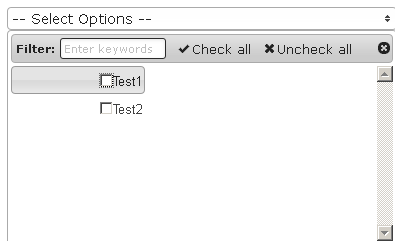
Here is an example of the result and my code :


$this->widget('ext.widgets.EchMultiselect', array(

	        'name'=>'test',

	        'data' => array('Test1','Test2'),


	        'dropDownHtmlOptions'=> array(

	'class'=>'span-10',

	                //'style'=>'width:450px',

	),

	        'options' => array( 

	                'selectedList'=>5,

	                'multiselect'=>true,

	                'header'=>true,

	                'filter'=>true,

	),

	));

Here is the file 2898

test_echmultiselect.png

I assume that the same problem exists when you define the width via ‘width:450px’ instead of span-10?

It seems to me, that there are other style-declarations (like width, or float:right etc.) that affect the checkboxes and make them appear that way…

Do you use Firebug (the add-on for firefox)?

With firebug you could determine what styles exactly are applied to the checkboxes.

Sometime css-styles do behave unexpectedly and if there are more than one css-file, something overrides the other and there is no way to know what happpens without some tool like firebug…

Best regards…

I’ve juste tested this and it appears that the ‘ui-corner-all’ style is applied to the label tag. Is that correct?

Yes, the labels have the class ‘ci-corner-all’, that only has the effect of rounding the corners of the label (the gray area).

the <ul> element has the class ‘ui-multiselect-checkboxes’, so it looks like this:


<ul class="ui-multiselect-checkboxes">

  <li>

    <label class="ui-corner-all"> ... </label>

  </li>

</ul>


It is really difficult to say something without seeing the code, but I have the suspicion that somewhere in your css files there is a style declaration for the ‘label’ element that sets a fixed width for it and makes the text within right aligend, i.e. something like this:


label {

   width:100px;

   text-align:right;

}


This is often done to style form elements, where a label is followed by a text-field for example, to produce forms like here: http://jeffhowden.com/code/css/forms/

Note that the labels are right aligned and how they are styled further below:


form div label {

  display: block;

  float: left;

  width: 130px;

  padding: 3px 5px;

  margin: 0 0 5px 0;

  text-align: right;

}


More than likely something like this is happening in your case…

Best regards…

I found the problem.

I think there is a conflict with the Bootstrap extension (it overwrite indeed the label tag).

I’m not an expert in css, do you have a workaround for me?

Many thanks

In the assets folder of the extension, there is the file "jquery.multiselect.css"

Add the following code into that file should work:


.ui-multiselect-checkboxes label  { width:auto !important; text-align:left !important; }


Best regards…

Ok, works like a charm. I change the width:auto (the cornered box width takes just the label characters length) to 98% (the scroll bar hides the end)

Hi,

I want to tune the component to fit my needs.

I want to display it like a multiple checkbox list but without the user to click on the scroller => always display the entire list (and abusing : is it possible in that case that the checkboxes take the entire height before the next component? - css? my weakness)

Is it possible?

So you don’t want a “drop-down-checkbox-list”?

You want a list of checkboxes that are always visible?

EchMultiSelect is a JQuery widget, there is a lot of javascript-code behind its behavior ((dis)appearing of the boxes etc.).

It will not be easy to make it behave like you want it to, it is not just a matter of css.

So if you don’t need/want a drop-down element, I would recommend for example the CheckBoxList of Yii:

http://www.yiiframework.com/doc/api/1.1/CActiveForm#checkBoxList-detail

Best regards…

Indeed I know the checkboxlist from Yii.

But there is an issue to make it working with Ajax requests (boxes don’t stay checked), that’s why I’d prefer a Select/Option approach.

hmm…

I’m afraid I don’t know an easy way to tweak EchMultiSelect like you want… apart from trial-error…

I have a few ideas, but I don’t know if they would work properly:

  • With the ‘autoOpen’ set to true, you can make the checkboxes appear on page load

  • If you comment out the ‘close’ function in the js-file (jquery.multiselect.js), the displayed checkbox container then would never close.

  • with the ‘height’ option you could fix the height (for example 500px;)

  • To make sure the the checkbox container is not positioned over other elements, you could put the EchMultiSelect widget into a div with the style="height:550x; display:block;" (adjust height to the height of the container)

etc…

Hope that helps somewhat.

Best regards…

Hi there,

I am always getting only one values even though i have selected multiple of data.If i use dropDownAttribute instead of name ,then it works but if I want to update it doesn’t work with dropDownAttribute but shows the value while using name. So i want to use name instead of dropDownAttribute in EchMultiselect,but the problem is it doesn’t save the multiple selected value

Hi.

I’m not sure I understand what you mean.

But generally speaking, to use the ‘name’ attribute and save the selected values, your view fiel should look like (I use the example from the extension page):


$my_colors = array('red','yellow','orange','black','green','blue');

$this->widget('ext.widgets.EchMultiselect', array(

    'name'=>'colors',

    'data'=>$my_colors,

    'value'=>array(0,3),

    'dropDownHtmlOptions'=> array(

        'class'=>'span-10',

        'id'=>'colors',

    )

));


This will produce a dropdown list of the six colors.

‘red’ and ‘black’ will be preselected (because declared in ‘value’ attribute).

In your controller actionUpdate, $_POST[‘colors’] will be an array that contains the keys of the selected colors. If for example yellow, green and blue are selected before update, then $_POST[‘colors’] will be:


$_POST['colors'] = array(1, 4, 5);

Note that you have to save these selected values manually where you want to have them saved. That will not happen automatically!

In this example I could have a table ‘obj_color’, in which I want to store the selected colors for an object with the id $obj_id. I would have to save these values in the Update action like so:


  foreach($_POST['colors'] as $color_id) {

    $ocolor = new ObjColor;

    $ocolor->obj_id = $obj_id;

    $ocolor->color_id = $color_id;

    $ocolor->save();

  }


In any case, you will have to use a foreach-loop in your controller to loop through the selected values and process/save them.

Please take a look at the following post:

http://www.yiiframework.com/forum/index.php/topic/28524-echmultiselect-widget/page__view__findpost__p__145762.

I also highly recommend this article: Handling Related Models in Yii Forms from Larry Ullman.

Hope this helps.

Best regards…

Hi,

Thank you anyways.I couldn’t solve the problem since a week.And i found a simple mistake ie.

$my_colors = array(‘red’,‘yellow’,‘orange’,‘black’,‘green’,‘blue’);

$this->widget(‘ext.widgets.EchMultiselect’, array(

'name'=&gt;'colors',


'data'=&gt;&#036;my_colors,


'value'=&gt;array(0,3),


'dropDownHtmlOptions'=&gt; array(


    'class'=&gt;'span-10',


    'id'=&gt;'colors',


)

));

Here in the ‘name’=>‘colors’, It should actually be ‘name’=>‘colors[]’.

Now the value is taking as array in the controller, otherwise it doesn’t take array value.

Thank you.

I want to use this widget as filter of CGridView. My code look like this:


array('name'=>'type',

			'value'=>array('PoliciesHelper', 'getPolicyTypes'),

			'filter'=>$this->widget('ext.EchMultiSelect.EchMultiSelect', array(

    'model' => $filter,

    'dropDownAttribute' => 'type',   

'dropDownHtmlOptions'=> array(

		'class'=>'span-10',

        'style'=>'width:200px;',

    ),  

    'data' => PoliciesHelper::getPolicyTypes(),

), true),


The drop down appear like normal drop down but when I select item it look like a multiple select field. How can I fix it?

P.S. Sorry for my bad explanation